![[HTML/CSS] 레이아웃 <position> 원하는 위치로 이동시키기 , 겹쳐서 출력하기](https://img1.daumcdn.net/thumb/R750x0/?scode=mtistory2&fname=https%3A%2F%2Fblog.kakaocdn.net%2Fdna%2FMCque%2FbtrD5RKhL9K%2FAAAAAAAAAAAAAAAAAAAAAJQvlWg2JWVI6FCnKhZdH5pZxjF-ToVFQXNEJ2AckUkt%2Fimg.png%3Fcredential%3DyqXZFxpELC7KVnFOS48ylbz2pIh7yKj8%26expires%3D1777561199%26allow_ip%3D%26allow_referer%3D%26signature%3DySR8LA3QsNlF%252BPb3kSnAiXOv1CM%253D)
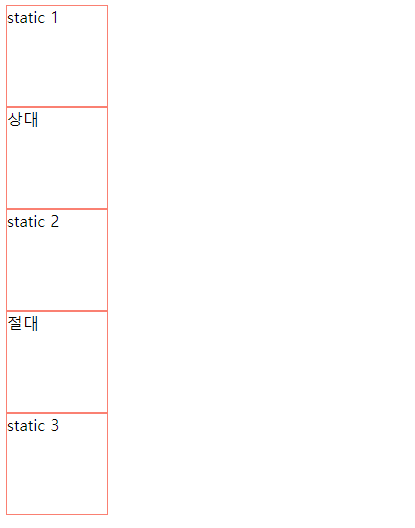
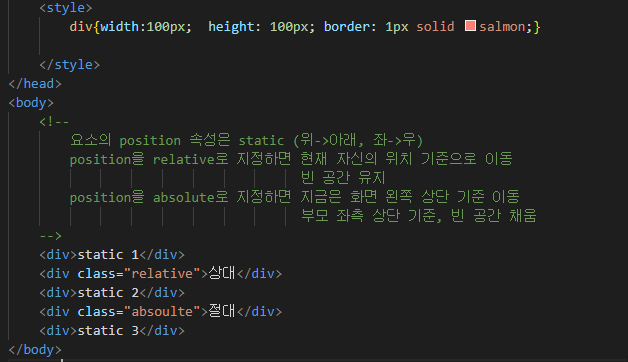
기본적으로 정렬 위치는 위 -> 아래 , 좌 -> 우 이다
사진위에 글씨를 넣는다거나 겹쳐서 출력해야하는 경우
position과 함께 relative 와 absolute를 활용한다


내용이 이동되면서 relative 는 빈공간을 유지하고
absolute 는 빈공간을 아래 내용이 올라와 채우게된다
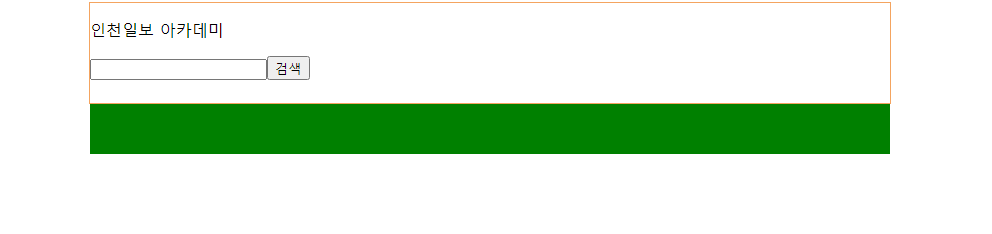
이동할 요소는 absolute 로 지정하고
기준점이 될 요소는 relative로 지정한다
absolute는 relative를 기준으로 이동하게된다
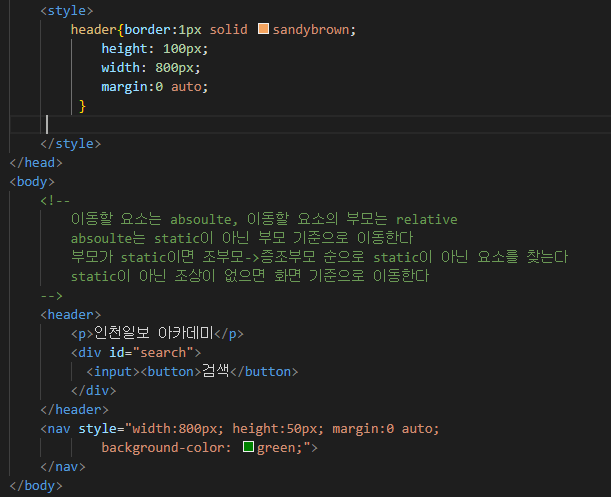

#search{ position : absoulte; right : 20px;}
-> 이동할요소
기준점인 header의 오른쪽에서 20px 떨어져서 출력
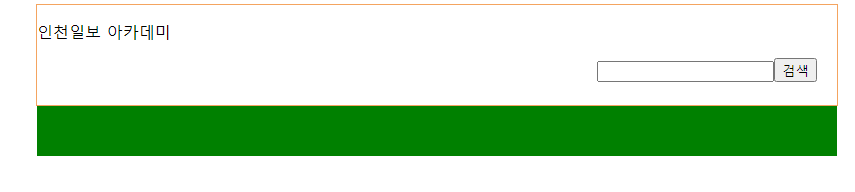
header 에 position : relative 추가
-> 기준점
겹쳐서 출력하기

기본적으로 아이콘 넣고 <input> 넣은 화면
아이콘을 input 안쪽으로 넣으려고 한다


border-radous = 둥근 테두리
text-align : center
을 이용해 아이콘을 가운데정렬해주었다


input 과 아이콘까지 한꺼번에 div로 묶어 relative 지정
왼쪽,오른쪽 아이콘 각각 absolute 지정하여 옮겨준다
    <script src="https://use.fontawesome.com/releases/v5.2.0/js/all.js"></script>
    <style>
        div{ width: 300px; text-align: center;
            position:relative}
        input{width: 300px; height: 35px; border-radius: 10px;}
        .fa-search{
            position:absolute; left:10px; top:12px;
        }
        #search_right_icon{
            position:absolute; right: 10px; top: 10px;
        }
    </style>
</head>

<body>
    <div>
        <i class="fa fa-search" aria-hidden="true"></i>
        <input>
        <span id="search_right_icon">
            <i class="fa fa-keyboard-o" aria-hidden="true"></i>
            <i class="fa fa-microphone" aria-hidden="true"></i>
        </span>
    </div>
</body>

<style>
        div{position:relative; width: 470px;}
        .fa-arrow-left{position:absolute; left:10px; top: 300px;
                    ;}
        .fa-arrow-right{position:absolute; right: 10px; top: 300px;}
    </style>
</head>
<body>
    <div>
        <a href="#">
            <i class="fa fa-arrow-left" aria-hidden="true"></i>
        </a>
        <img src="som.PNG">
        <a href="#">
        <i class="fa fa-arrow-right" aria-hidden="true"></i>
        </a>
    </div>

</body>